

A softphone app is software that lets you make and receive phone calls over the internet using a device you already own. Instead of plugging in a desk phone, you install an app on your laptop, smartphone, or tablet and your business line travels with you. The app connects to a VoIP (Voice over Internet Protocol) system, which routes your calls through the internet rather than traditional phone wires.
For businesses of any size, softphone apps eliminate the need for expensive hardware while keeping every team member reachable on a professional number. Whether your team works from an office in Raleigh, from home, or from the road, a single app keeps everyone connected under one business phone system.
Ready to learn more? Explore Alta Tech’s VoIP solutions in Raleigh, NC and see how the right softphone setup can fit your business.
What a Softphone App Actually Does
A softphone app replicates everything a physical desk phone does, but entirely in software. You can place calls, transfer them, put callers on hold, check voicemail, and join conference calls, all from one interface on screen. The app registers with your VoIP provider using a protocol called SIP (Session Initiation Protocol), which is the standard language VoIP systems use to set up and end calls.
Most softphone apps also bundle messaging and video calling into the same tool. That means your team can switch from a voice call to a chat or a video meeting without switching apps. This unified approach saves time and reduces the friction of juggling multiple communication tools throughout the day.
How Softphone Apps Connect to Your Business Phone System
A softphone app does not work on its own. It connects to a hosted VoIP platform or a private branch exchange (PBX) server. A PBX is the system that manages call routing inside your organization, directing incoming calls to the right extension or department. Cloud-hosted PBX systems handle all of this off-site, so you do not need server hardware in your office.
Your IT team or VoIP provider configures the app with credentials: a server address, a username, and a password. Once registered, the app behaves like any other extension on your phone system. Calls show your business number on the recipient’s caller ID, not your personal cell number.
This setup is especially useful for growing teams. Adding a new employee means provisioning an app, not ordering and shipping a desk phone. For small businesses exploring this technology, understanding how a VoIP phone system for small business works is a helpful foundation before choosing a softphone solution.
Core Features to Expect in a Quality Softphone App
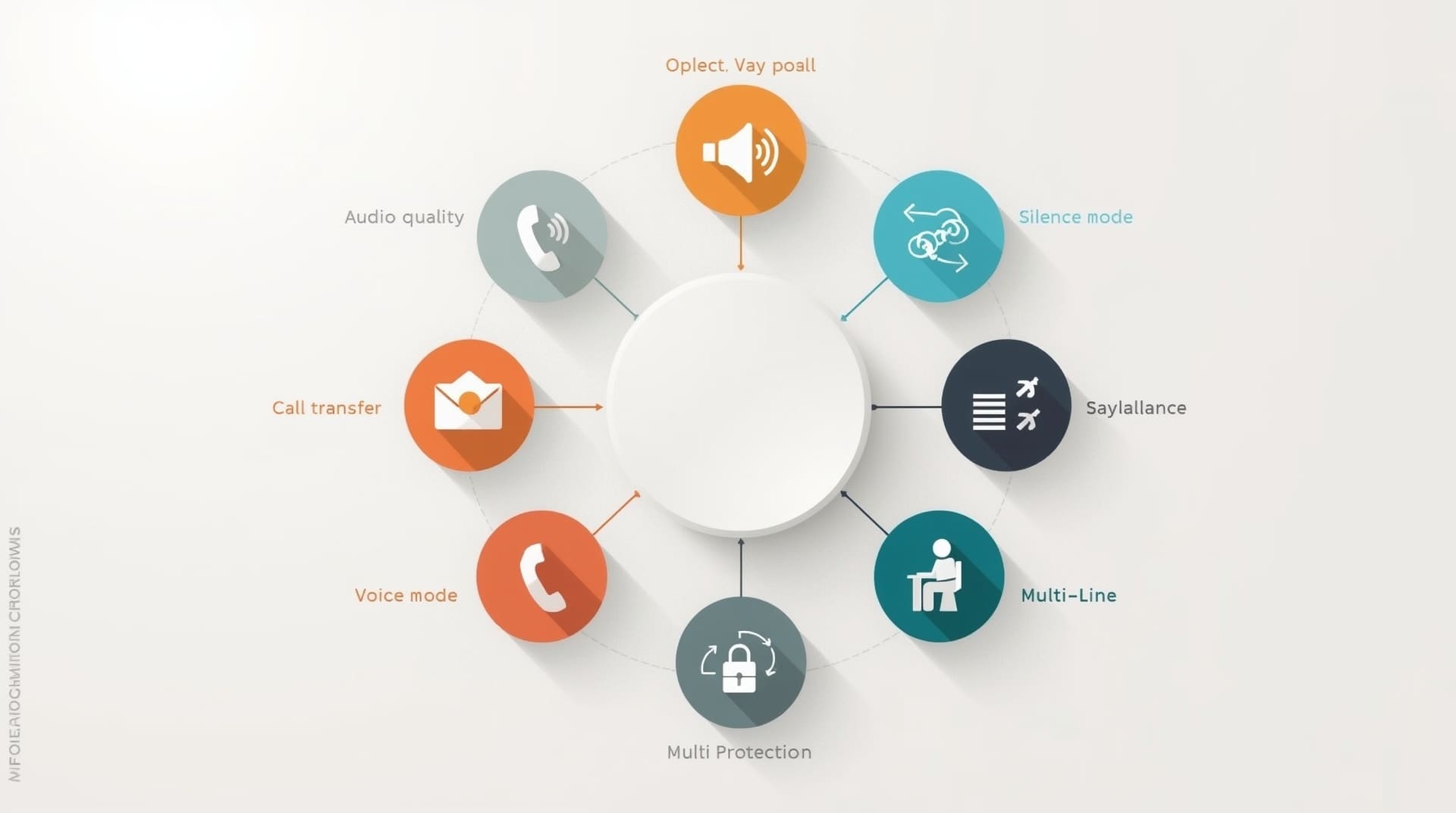
Not all softphone apps are built the same. Here are the key features that separate a reliable business tool from a basic calling app.
- HD voice quality: Uses wideband audio codecs (compression formats for voice data) to deliver clearer, fuller sound than a standard phone call.
- Call transfer and forwarding: Lets you send a live call to another extension or an outside number without dropping the caller.
- Voicemail to email: Delivers recorded voicemail messages to your inbox as audio files so you never miss a message.
- Do Not Disturb mode: Silences incoming calls during meetings or focused work without appearing offline to the system.
- Multi-line support: Allows you to manage more than one active call at a time, switching between lines easily.
- Presence indicators: Shows whether a colleague is available, on a call, or away, so you can reach the right person on the first try.
- Encryption: Protects voice data in transit using protocols like SRTP (Secure Real-time Transport Protocol) so calls cannot be intercepted.
Businesses in regulated industries, such as healthcare or legal services, should prioritize encryption and access controls. These features are not optional in those environments; they are a compliance requirement.
The Difference Between a VoIP Mobile App and a Softphone Desktop Client
The terms overlap, but there is a practical distinction worth understanding. A voip mobile app runs on a smartphone or tablet. It lets your team take business calls on their personal devices without revealing a personal number. A softphone desktop client runs on a Windows or Mac computer and is designed for employees who work primarily at a desk.
Both connect to the same VoIP system, so calls, contacts, and settings stay in sync across devices. Many providers offer a single license that covers both the mobile and desktop versions. That means an employee can answer a call on their laptop in the morning and seamlessly switch to their phone when they step out for lunch.
When to Prioritize Mobile
If your team spends time on job sites, traveling, or working hybrid schedules, the mobile version is the primary tool. Look for apps that maintain call quality on LTE and 5G networks, not just Wi-Fi.
When to Prioritize Desktop
For call center agents, customer support reps, or anyone handling high call volumes, a softphone desktop app with a headset delivers better ergonomics and more screen space for CRM (customer relationship management) integration. Many desktop softphones connect directly to tools like Salesforce or HubSpot, logging calls automatically.
Network Requirements for Reliable Softphone Performance
A softphone app is only as good as the network behind it. VoIP calls are sensitive to latency (delays in data transmission), jitter (inconsistent delivery timing), and packet loss (data that never arrives). Any of these issues will degrade call quality in ways your customers will notice.
A stable business connection with adequate bandwidth is the baseline. As a general rule, each active VoIP call uses roughly 85 to 100 kilobits per second in each direction. A team of 20 people making simultaneous calls needs a connection that can handle that load without congestion. Quality of Service (QoS) settings on your router can prioritize voice traffic over less time-sensitive data like file downloads.
For teams experiencing call quality problems, the issue is often the network rather than the softphone app itself. Alta Tech’s network management services can identify and fix the bottlenecks that hurt VoIP performance before they frustrate your callers.
Security Considerations for Softphone Apps
Because a softphone app sends voice data over the internet, it faces the same security risks as any other internet-connected tool. Without proper protections, calls can be intercepted, accounts can be hijacked, and toll fraud (unauthorized calls billed to your account) can rack up significant charges.
Key security practices include using strong, unique passwords for each SIP account, enabling two-factor authentication where the provider supports it, and keeping the app updated to close known vulnerabilities. Your VoIP provider should offer end-to-end encryption for both voice and signaling data.
Businesses in Raleigh handling sensitive client communications should also consider how softphone security fits into their broader cybersecurity posture. A layered approach, combining encrypted calls with network monitoring and endpoint protection, reduces the overall attack surface.
How to Set Up a Softphone App for Your Team
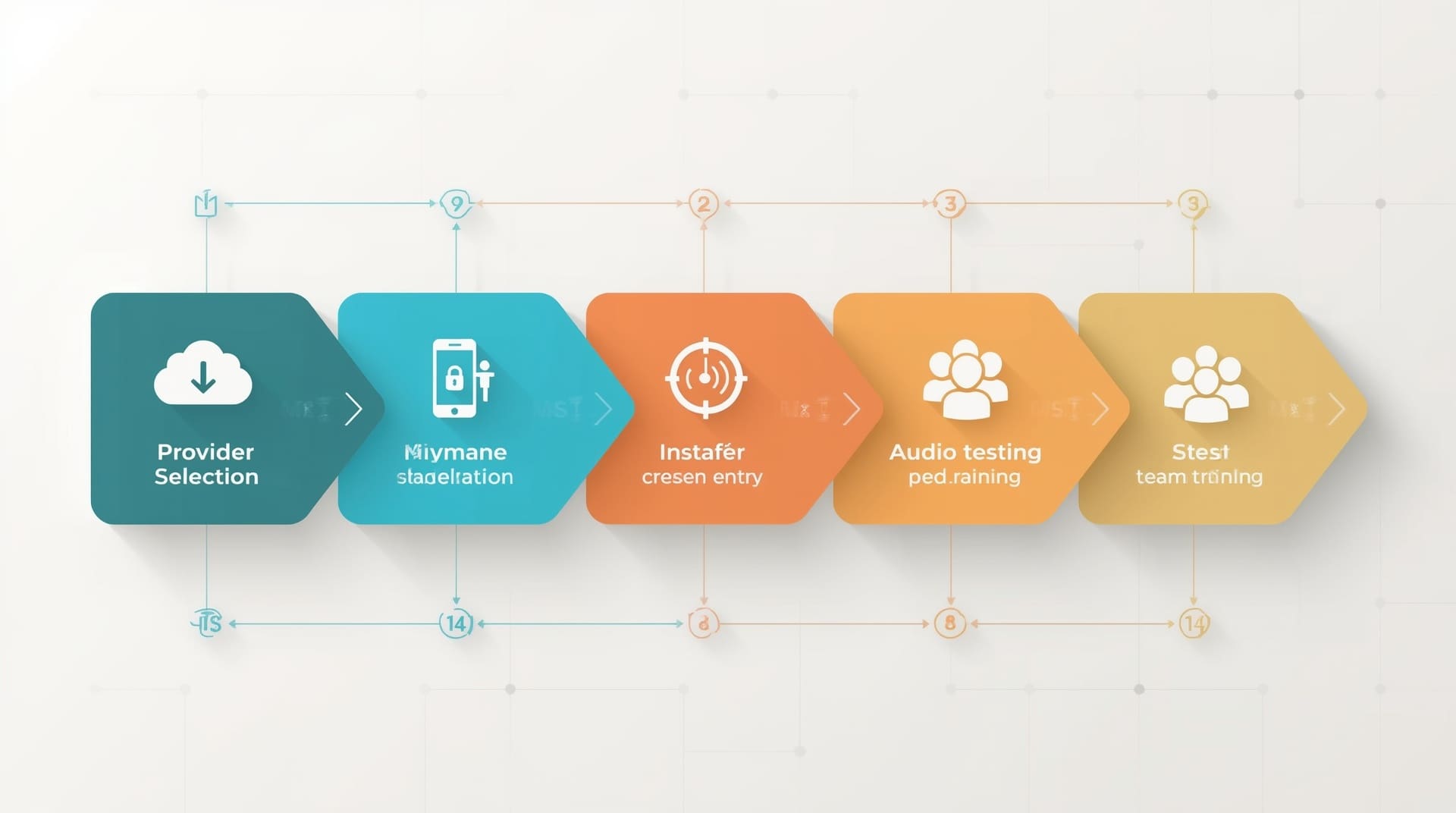
Getting started is simpler than most businesses expect. The process typically follows these steps.
- Choose a VoIP provider: Select a hosted VoIP or UCaaS (Unified Communications as a Service) platform that includes softphone support. Confirm it provides SIP credentials and a compatible app or allows third-party softphone clients.
- Download and install the app: Deploy the softphone app to each device, whether that is a smartphone through the App Store or Google Play, or a desktop client via a download package. Many providers support mobile device management (MDM) tools for bulk deployment.
- Configure SIP credentials: Enter the server address, extension number, and password provided by your VoIP platform. Most apps walk through this in a setup wizard.
- Test audio and network performance: Make a test call, check headset levels, and confirm call quality meets your standard before rolling out to the full team.
- Train your team: Show employees how to use transfer, hold, and voicemail features. A short walkthrough prevents confusion and reduces support requests.
For teams without dedicated IT staff, a managed IT services provider can handle the full setup, including provisioning accounts, configuring QoS, and training employees. This removes the technical burden from your team on day one.
Cost and Licensing for Softphone Apps
Softphone apps typically come bundled with a VoIP service subscription. The monthly cost per user varies based on the provider and the feature tier you select. Entry-level plans with basic calling features tend to cost less per seat than full unified communications platforms that include video, messaging, and CRM integration.
Some providers charge separately for the softphone client, especially if you want to use a third-party app rather than their native one. Understand what is included in your subscription before signing. Also factor in any costs for headsets, since a good headset has a significant impact on call quality for desktop users.
| Feature Tier | Typical Monthly Cost Per User | Common Inclusions |
|---|---|---|
| Basic VoIP Calling | $10, $20 | Voice calls, voicemail, basic call routing |
| Mid-Tier UCaaS | $25, $40 | Voice, video, messaging, softphone app, presence |
| Enterprise UCaaS | $40, $65+ | Full suite, CRM integration, analytics, admin controls |
Common Mistakes Businesses Make With Softphone Apps
Deploying a softphone app without a plan leads to avoidable problems. Here are the mistakes that come up most often.
- Skipping network assessment: Installing the app without checking whether your internet connection and router settings can support VoIP traffic. Poor QoS configuration is the number one cause of choppy calls.
- Ignoring security settings: Using default passwords or skipping encryption options because setup feels faster that way. This opens the door to toll fraud and eavesdropping.
- Choosing a provider without mobile support: Some older or budget VoIP platforms lack a quality voip mobile app. If your team is mobile, confirm the provider’s app works well on iOS and Android before committing.
- Not testing before full rollout: Deploying to the entire company before testing with a small group first. Pilot testing catches configuration errors before they affect everyone.
- Overlooking training: Assuming employees will figure out the app on their own. Even a 30-minute walkthrough reduces complaints and improves adoption.
Softphone Apps for Remote and Hybrid Teams

Remote and hybrid work has made the softphone app the default phone for many businesses. When employees work from different locations, a physical phone tied to a desk extension creates gaps. A softphone app solves that by keeping the business number active wherever the employee works.
For teams spread across multiple locations, a cloud-hosted VoIP system with softphone access creates a unified directory. An employee in Raleigh can transfer a call to a colleague working remotely as easily as if they shared an office. Customers experience one consistent phone system regardless of where your team sits.
The flexibility also reduces costs. Businesses that cut desk phones in favor of softphone apps save on hardware, maintenance, and the physical wiring that traditional phone systems require. Those savings compound as the team grows.
Final Thoughts on Softphone Apps
A softphone app is one of the most practical upgrades a business can make to its communications setup. It removes the hardware dependency, extends your business number to every device your team uses, and delivers features that most traditional phone systems cannot match without expensive add-ons.
The key is pairing the right app with a reliable VoIP platform and a network that can support voice traffic without degradation. Get those three pieces right and your team will have a phone system that works as hard as they do, whether they are at a desk, on the road, or working from home.
Frequently Asked Questions About Softphone Apps
Can I use a softphone app on my personal smartphone for business calls?
Yes. A softphone app installed on your personal phone displays your business number on outbound calls, keeping your personal number private. Your employer or VoIP provider provisions a separate SIP account for you. Personal and business calls stay completely separate even on the same device.
What internet speed do I need to run a softphone app reliably?
Each active VoIP call uses roughly 85 to 100 kilobits per second in each direction. For most small offices, a standard broadband connection handles the load. The bigger concern is latency and jitter, not raw speed. A connection with high latency will produce delays and echo even if the bandwidth is sufficient.
Does a softphone app work on public Wi-Fi?
It can, but public Wi-Fi introduces security and quality risks. Unencrypted networks expose call data to anyone on the same network. If your team regularly uses public Wi-Fi, require a VPN (virtual private network) alongside the softphone app to encrypt the connection before any voice data leaves the device.
Is a softphone desktop app better than a desk phone for call center use?
For many call center environments, a softphone desktop app paired with a noise-canceling headset matches or exceeds a physical desk phone in both quality and flexibility. The desktop app can integrate directly with CRM software, logging calls automatically and displaying caller information on screen. Desk phones cannot do this without additional hardware or middleware.
How do I know if my VoIP provider supports third-party softphone apps?
Ask the provider whether their platform uses standard SIP credentials. If it does, most third-party softphone clients will work with it. Some providers use proprietary protocols that lock you into their native app. Confirm SIP compatibility before signing a contract, especially if you want flexibility to switch apps in the future.